From a shared mailbox and lost requests to a full-featured ticketing system with SLA tracking, Teams notifications and automation — running entirely inside your own tenant.
The client's IT and facilities requests arrived through a shared Outlook mailbox, Teams chats and hallway conversations. Nobody could say how many tickets were open, who was working on what, or whether anything had breached its response target — because there were no targets at all.
Requests were lost, escalations were manual, and management had no reporting beyond gut feeling. Classic ticketing SaaS tools were evaluated, but per-agent subscription costs and data leaving the tenant were deal-breakers. The company already paid for Microsoft 365 — it just wasn't being used for this.
Flex Help Desk is a single SharePoint Framework (SPFx) web part deployed into the client's own Microsoft 365 tenant. Built with React and Fluent UI, it renders as a full-bleed help desk portal in SharePoint and as a tab in Microsoft Teams.
On first run it auto-provisions six SharePoint lists — settings, tickets, comments, time entries, assets and knowledge base — so there is no manual setup. A hybrid storage model (JSON payload plus indexed columns) means admins can add custom ticket fields at any time without schema changes. All data stays inside the tenant.
Everything an internal service team needs — from submission to resolution to reporting — configured through a single admin Settings hub with ~55 options in 6 groups.
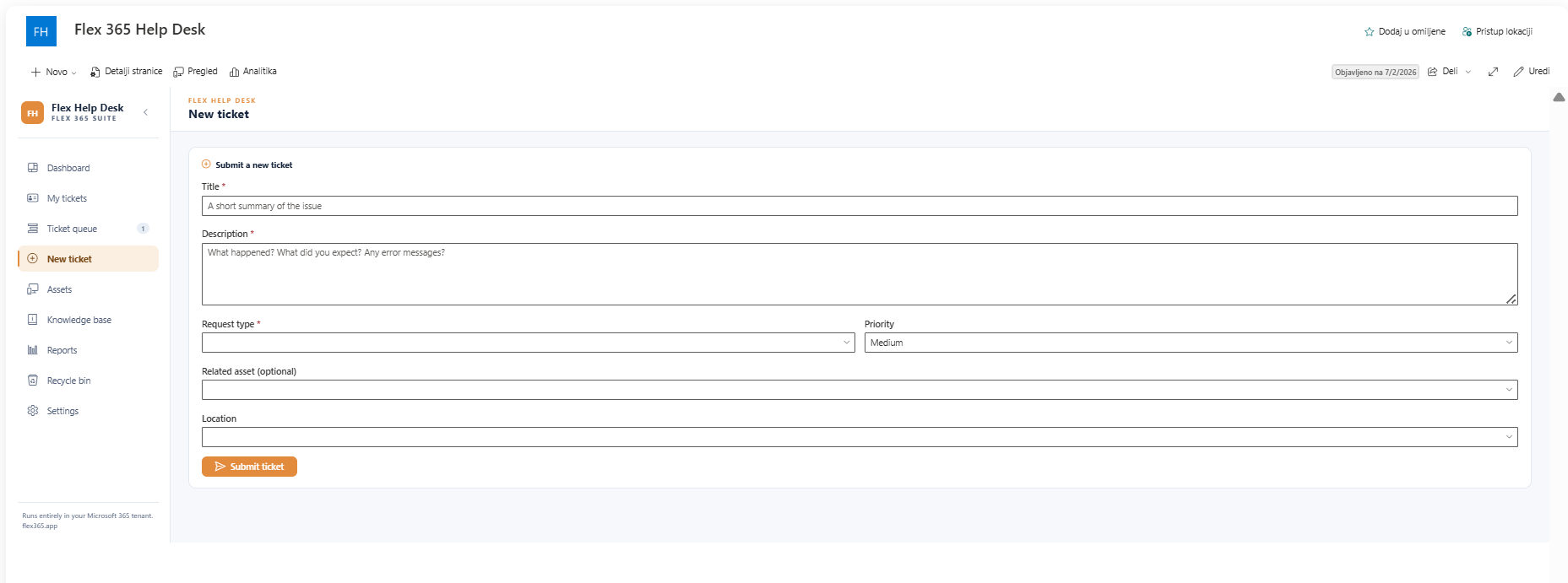
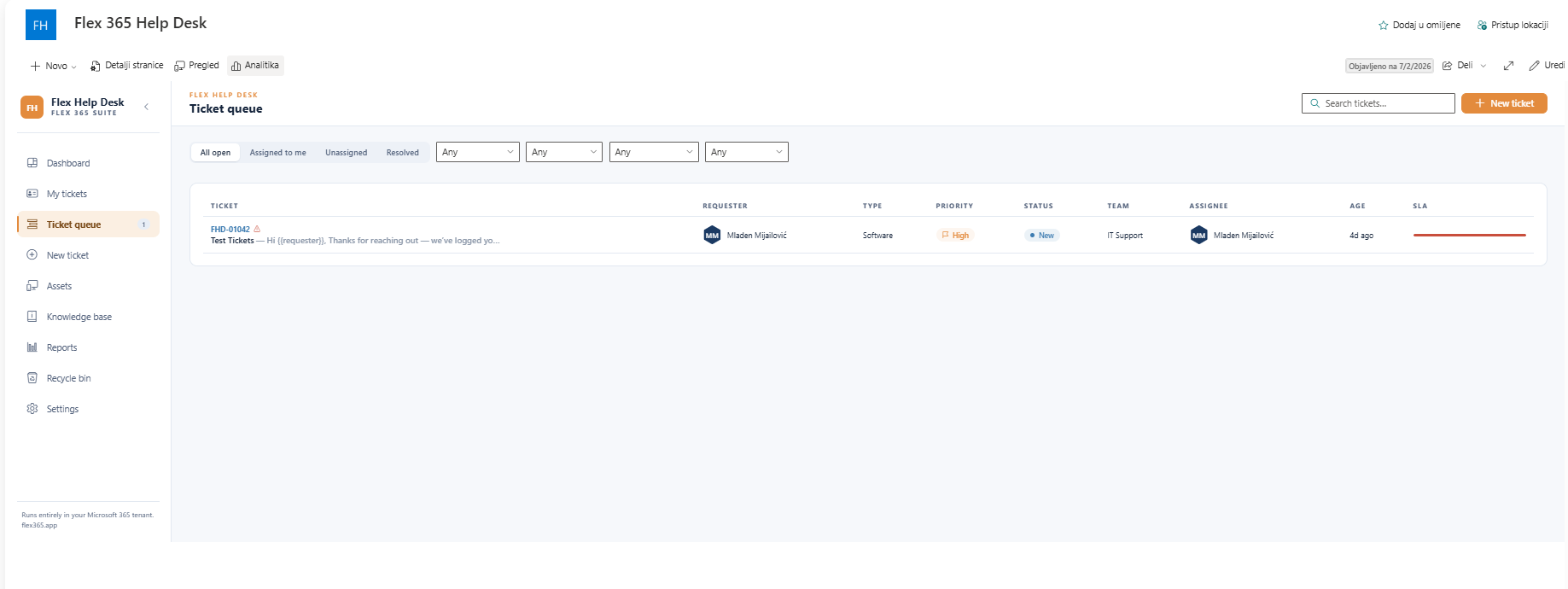
Employees raise tickets through a configurable form — single-line quick mode or full form with custom fields. Tickets get a branded number (prefix + padding), and agents work them in "My tickets" and "All tickets" queues with filters, custom columns, transfer, merge/split, sub-tickets and reopen-on-reply.
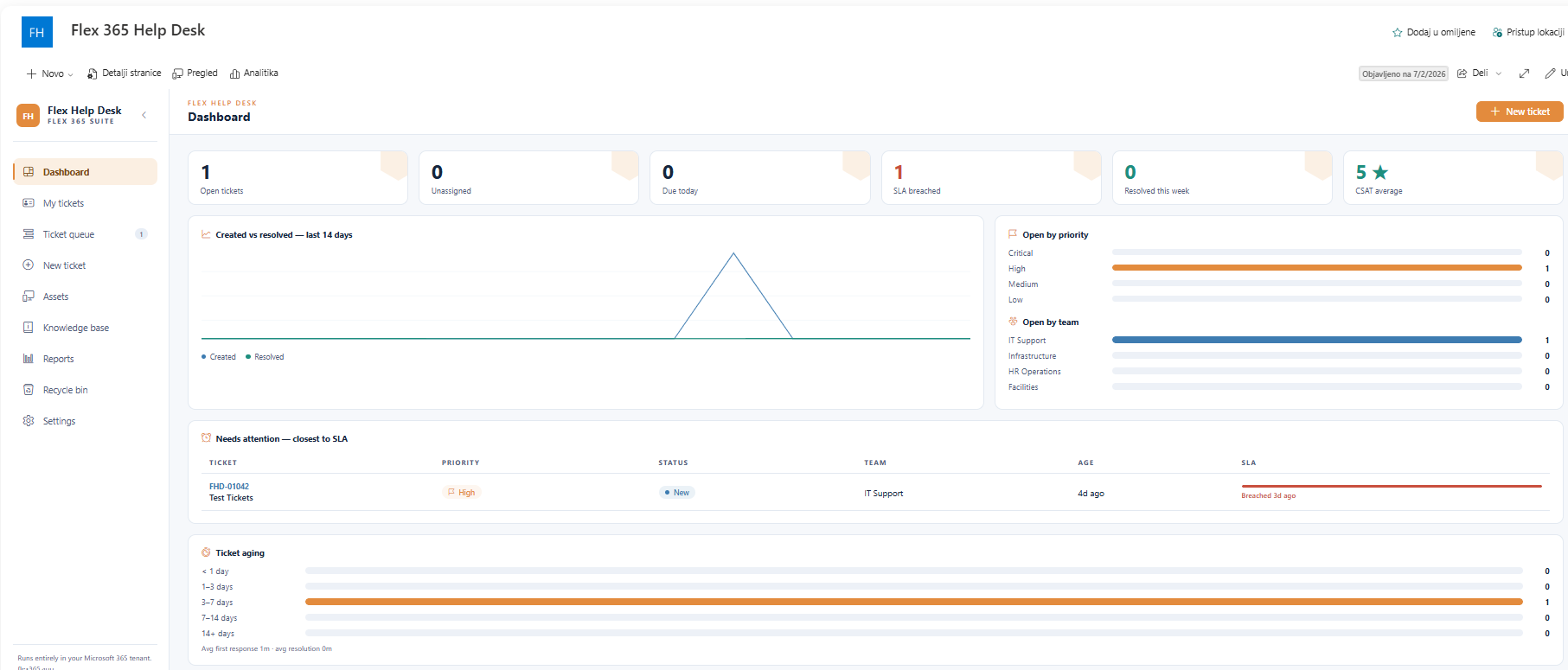
Custom FieldsSLA policies per priority and request type define response and resolution targets — optionally counting business hours and holidays only. The signature "SLA fuse" progress bar shows live time-to-breach on every ticket, and breaches can auto-escalate to a supervising team.
Business Hours AwareReal-time KPIs the moment agents log in: open tickets, unassigned, due today, SLA breached, resolved this week and CSAT average. A "Needs attention" queue surfaces the tickets closest to breaching their SLA so nothing slips through.
Real-time KPIsRequest types are mapped to teams, so a "Hardware" ticket lands with IT and a "Payroll question" with HR — automatically. Teams have members, owned categories and a supervisor; services and sub-services structure the catalog. Auto-assign keeps queues moving.
Auto-assignAdmins build no-code rules triggered on create, update, SLA breach or idle tickets. Conditions (equals / contains / older than X days) drive actions: set priority or status, assign to a team, notify, escalate or close. Auto-create, auto-close and closure conditions round it out.
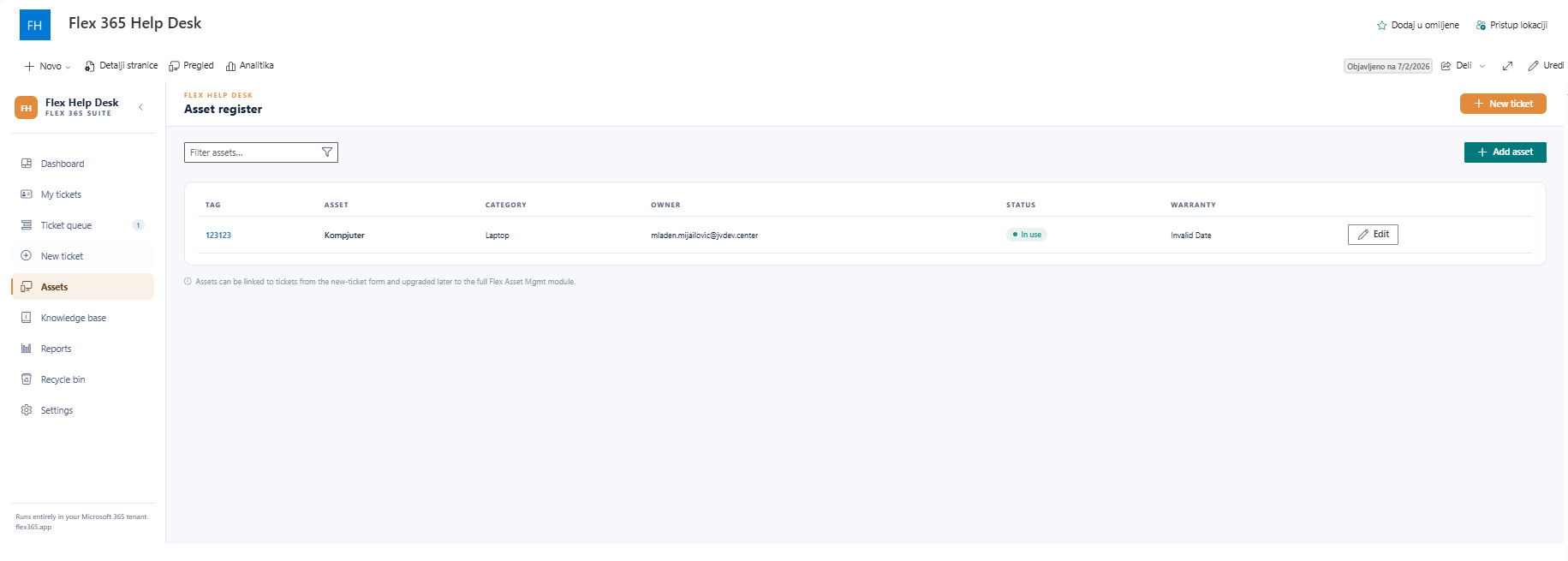
No-code RulesA built-in register of hardware and software assets, stored in its own SharePoint list and linked to tickets — so agents see which laptop, license or printer a ticket is about, and managers see which assets generate the most incidents.
Linked to TicketsAgents author and curate KB articles directly in the portal. Employees search the knowledge base before raising a ticket, deflecting repeat questions and cutting queue volume — the cheapest ticket is the one that's never created.
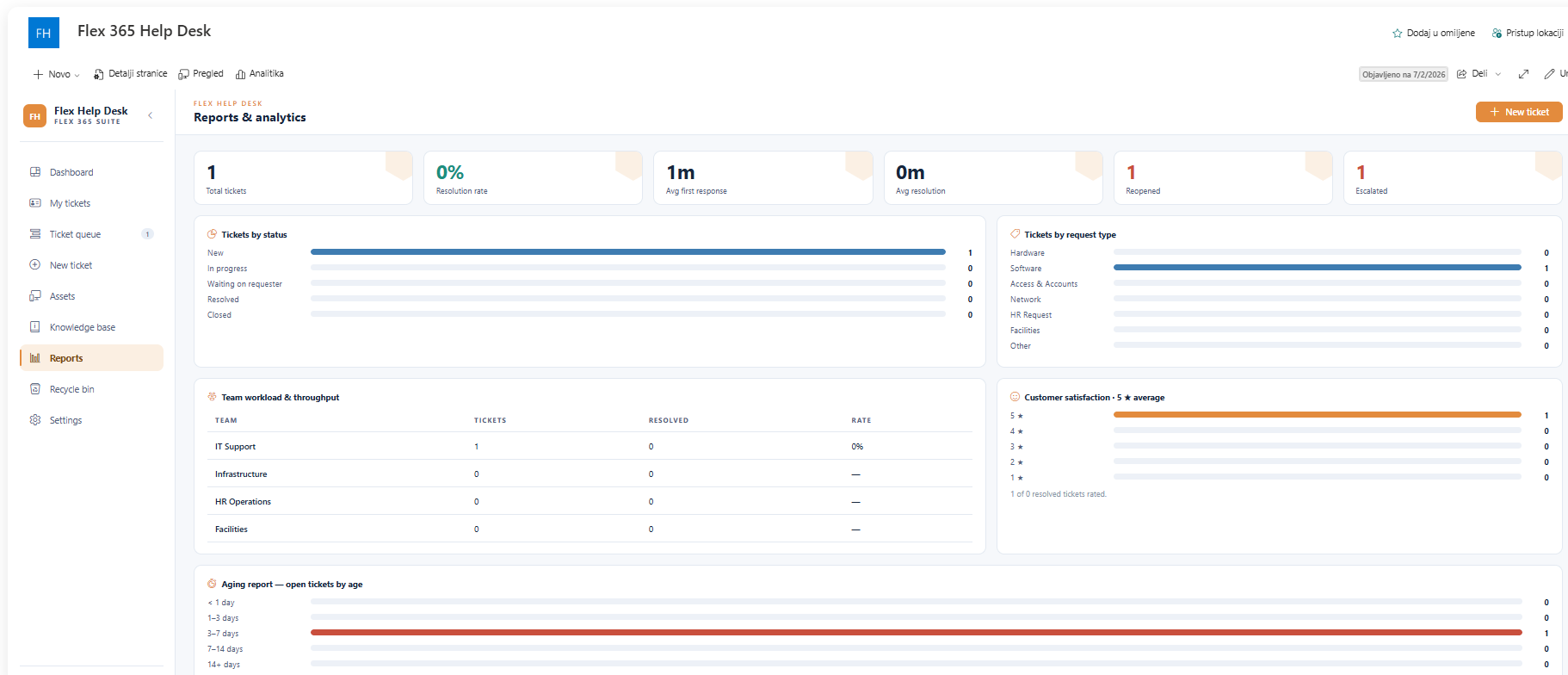
Self-serviceA reporting workspace with workload by team and agent, ticket aging, and CSAT survey results collected on resolution. Time entries logged per ticket feed effort reporting, and scheduled e-mail digests keep management informed automatically.
CSAT SurveysA 6-role × 9-event notification matrix decides exactly who hears about what, with token-based subject/body templates. Ticket events post Adaptive Cards to Teams with an "Open ticket" deep link, a Power Automate contract fans out e-mails, and optional Azure OpenAI suggests agent replies.
Teams + Power AutomateWhat an admin sees differs from what an agent sees — and employees get a clean, simple self-service view. Notifications additionally distinguish requester, assignee, supervisor, admin, approver and task roles.
Auto-provisioning does the heavy lifting — the six SharePoint lists are created automatically on first run, so implementation is configuration, not construction.
The .sppkg package is uploaded to the tenant App Catalog and the web part is added to a SharePoint site. On first run it provisions all six lists — settings, tickets, comments, time entries, assets and knowledge base — automatically.
Priorities, statuses, request types, custom fields, ticket numbering and branding are set up in the Settings hub together with the client. Teams are defined and request types mapped for categorised routing.
SLA policies, business hours and holidays configured. Notification matrix and templates tuned per role and event. Teams incoming webhook and the Power Automate e-mail flow connected and tested.
Agents run realistic tickets end-to-end — routing, escalation, canned responses, time tracking, CSAT. Automation rules verified. A short training session covers daily agent workflows.
The web part is published on the intranet and synced to Microsoft Teams as a tab. Employees are notified with a short "how to raise a ticket" guide. Hypercare support window begins.
Requests used to disappear into a shared mailbox. Now every ticket has an owner, a deadline and an SLA fuse counting down — and Teams pings the right people automatically. We finally manage the help desk instead of chasing it.
No external servers. No per-agent SaaS subscriptions. Every ticket, comment and asset stays inside your Microsoft 365 tenant, protected by Microsoft's enterprise security.
Book a free 30-minute live demo and see how your service team can have a complete ticketing system with SLA tracking running inside Microsoft 365 within a week.
📅 Book a free demoSee how other teams are using Flex 365 inside Microsoft 365.